Android Play Store Deployment
If you are using Capacitor, you can additionally refer to the Capacitor documentation for Deploying to Google Play.
Generating a release build of an app
- Capacitor
- Cordova
To generate a release build for Android, build your web app and then run the following cli command:
npx cap sync
This will copy all web assets and sync any plugin changes.
Next, open Android studio:
npx cap open android
To generate a release build for Android, run the following cli command:
ionic cordova build android --prod --release
This will generate a release build based on the settings in the config.xml in the platforms/android/app/build/outputs/apk directory of an app.
An Ionic app will have preset default values in this file but this can be changed to customize builds.
Signing an APK
- Capacitor
- Cordova
To create an AAB binary locally using Android Studio:
- Open the Build menu
- Choose Generate Signed Bundle / APK
- Follow the prompts to sign the AAB with your keystore file
For complete details, view the Android documentation.
Google Play Signing
If you haven't made the switch to Android app bundles yet, you will need to opt into Play App Signing in the Google Play Console to be able to publish them.
New Apps
まず、Google Play コンソールで新しいアプリを作成します。アプリの署名を有効にするには、Production、オープンテスト、クローズドテスト、または内部テストのいずれかのページにある新しいリリース画面に移動する必要があります。 「新しいリリースを作成」ボタンを選択します(どのリリースタイプでも構いません。今は実際に新しいリリースを作成する必要はありません):

Under the App integrity section, click the Change app signing key button:

Next, select the Export and upload a key from Java Keystore option. This is the only way in which you can retain the key and have Google Play use it for signing. If you're using Appflow to build Android apps in the cloud, this is also the required option so you can upload the keystore file to Appflow.

画面の指示に従ってキーストアを生成し、同じキーストアファイルを Appflow ダッシュボードでもアプリの署名に使用できます。キーストアファイルの生成に関してサポートが必要な場合は、Android 証明書のドキュメントを参照してください。生成された ZIP ファイルがアップロードされたら、準備完了です!キーストアファイルで署名された AAB バイナリをビルドし、それを Google Play にアップロードします。
Existing Apps
As of now, existing apps aren't required to use the AAB format, but you can still enroll them using Play App signing.
アプリ署名にオプトインするには、過去のリリースアプリを署名するために使用したアプリ署名キーをアップロードする必要があります。「セットアップ -> アプリの整合性」に移動し、次の 2 つのオプトイン方法のいずれかを選択します:Android Studio からキーをエクスポートしてアップロード、またはJava キーストアからキーをエクスポートしてアップロード。キーがアップロードされたら、Play App Signing に登録できます。

With smaller app sizes, improved performance, and enhanced security, the AAB binary format is a win for app developers and users alike. If you have an existing Android app using the APK format, consider migrating to AAB to take advantage of all the great features it provides.
First, the unsigned APK must be signed. If a signing key has already been generated, skip these steps and use that one instead. Generate a private key using the keytool command that comes with the Android SDK:
keytool -genkey -v -keystore my-release-key.keystore -alias alias_name -keyalg RSA -keysize 2048 -validity 10000
Once that command has been ran and its prompts have been answered a file called my-release-key.keystore will be created in the current directory.
Save this file and keep it somewhere safe. If it is lost the Google Play Store will not accept updates for this app!
To sign the unsigned APK, run the jarsigner tool which is also included in the Android SDK:
jarsigner -verbose -sigalg SHA1withRSA -digestalg SHA1 -keystore my-release-key.keystore HelloWorld-release-unsigned.apk alias_name
Finally, the zip align tool must be ran to optimize the APK.
The zipalign tool can be found in /path/to/Android/sdk/build-tools/VERSION/zipalign.
For example, on macOS with Android Studio installed, zipalign is in ~/Library/Android/sdk/build-tools/VERSION/zipalign:
zipalign -v 4 HelloWorld-release-unsigned.apk HelloWorld.apk
This generates a final release binary called HelloWorld.apk that can be accepted into the Google Play Store.
Submitting an app to the Google Play Store
Now that a release AAB/APK has been generated, a Play Store listing can be written and the AAB/APK can be uploaded.
To start, visit the Google Play Store Developer Console and create a new developer account.
Making a developer account with Google Play costs $25 USD.
Once a developer account has been created, go ahead and click the Create an Application
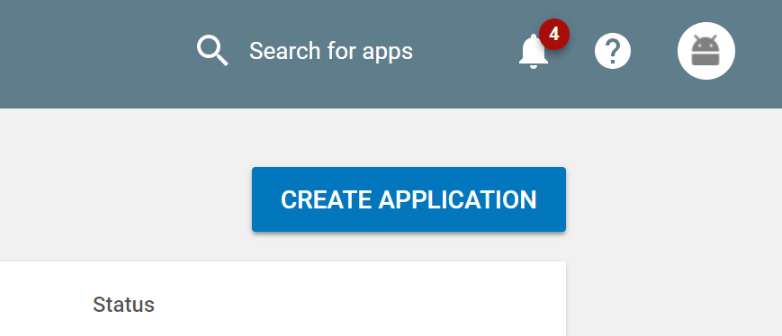
Be sure to fill out the description for the app along with providing screenshots and additional info. When ready, upload the signed release AAB/APK that was generated and publish the app.
Updating an app
アプリが進化するにつれて、新しい機能や修正を加えて更新する必要があります。アプリは、新しいバージョンを Google Play ストアに提出するか、Appflow の Live Update 機能のようなライブ更新サービスを使用することで更新できます。ライブ更新を使用すると、Play ストアに変更を提出することなく、Appflow ダッシュボードから直接ユーザーに変更を配信できます。ライブ更新の詳細についてはこちらをご覧ください。
- Capacitor
- Cordova
In order for the Google Play Store to accept updated AAB/APK, the android/app/build.gradle file will need to be edited to increment the versionCode value, then rebuild the app for release following the instructions above.
In order for the Google Play Store to accept updated AAB/APK, the config.xml file will need to be edited to increment the version value, then rebuild the app for release following the instructions above.